


Add subtitles to video without slowing down your team
Camtasia Audiate produces editable subtitles on videos in minutes, saving trainers and documentation teams hours of manual work.
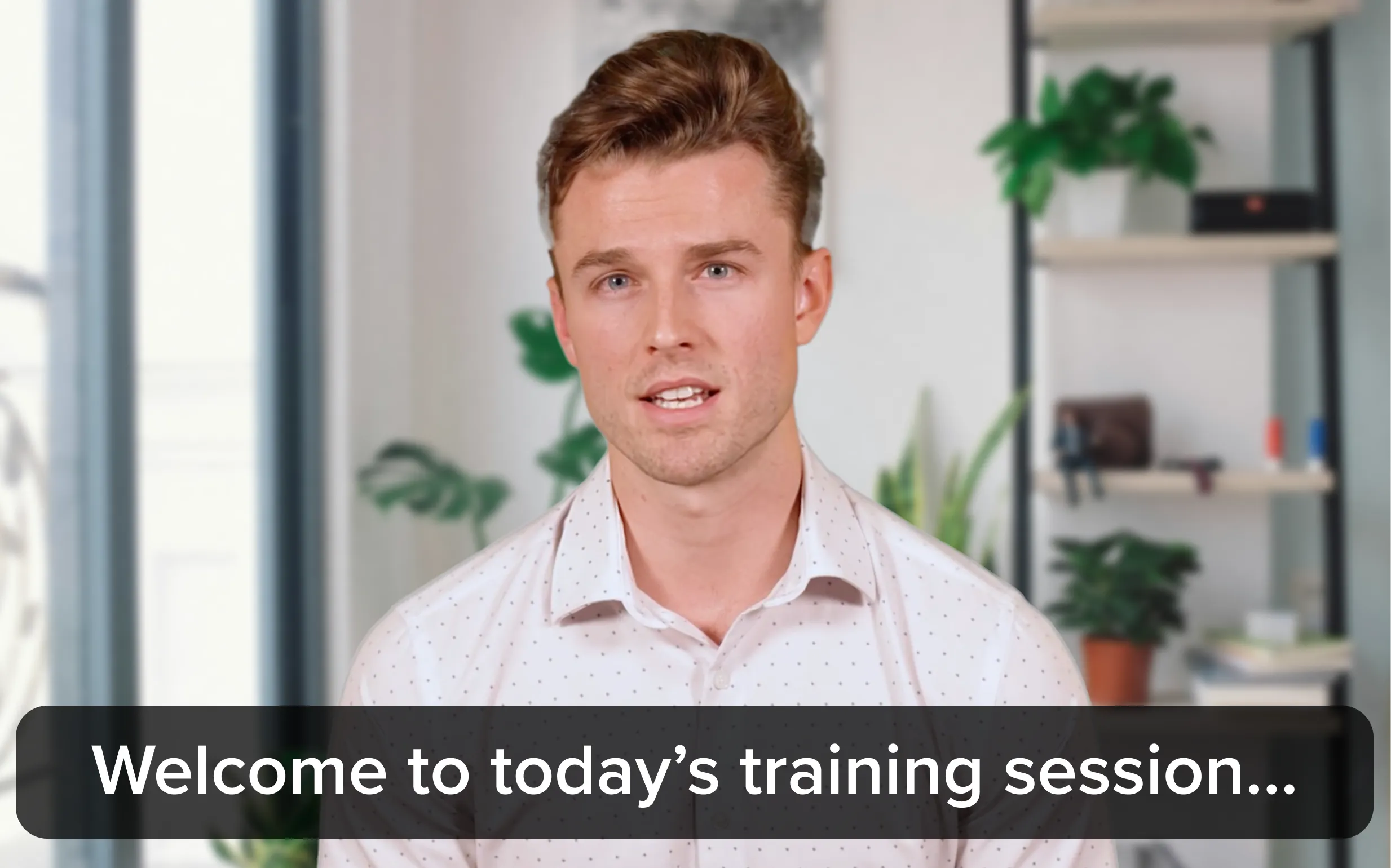
From recording to captioned video in three steps
Record, transcribe, and export in one session through one connected workflow.
1
Step 1: Import your recording
Open your video in Camtasia Editor and select the speech bubble, callout, or annotation you want from the Annotations library on the left-hand side.
2
Step 2: Generate and edit subtitles
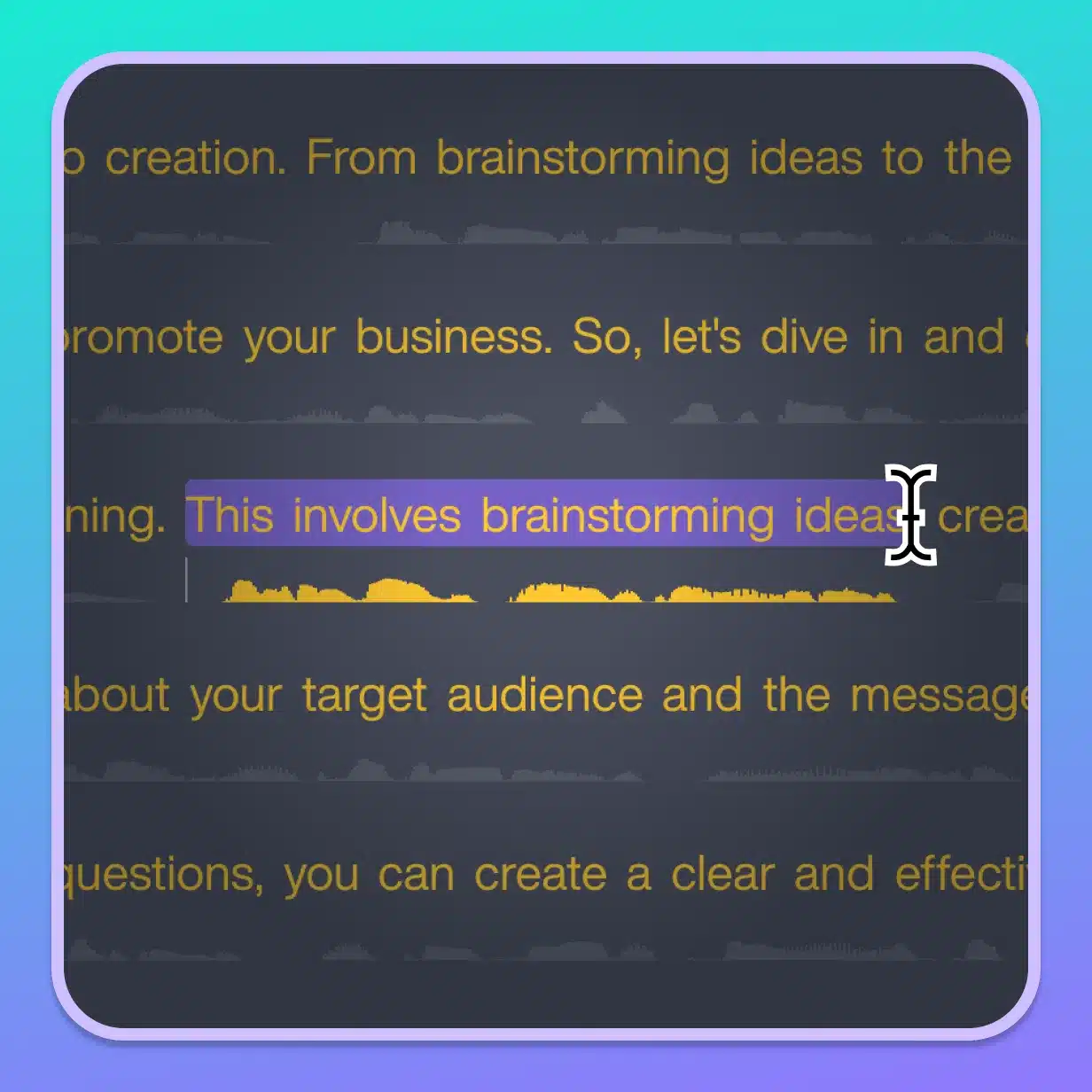
A speech-to-text transcription appears as editable text that stays synced with the timeline. Instead of manually nudging timeline markers, simply edit the text.
3
Step 3: Export and publish
Camtasia exports captions as SRT for platforms with a caption toggle or burns them into the video for universal display. Choose your format, export, and publish.
How Camtasia helps you add subtitles fast
Camtasia delivers an edit-ready first draft in minutes, but the real value is the control you gain afterward.
Automatic speech-to-text transcription
In one pass, Audiate generates a full subtitle transcription from the spoken audio in your recording.
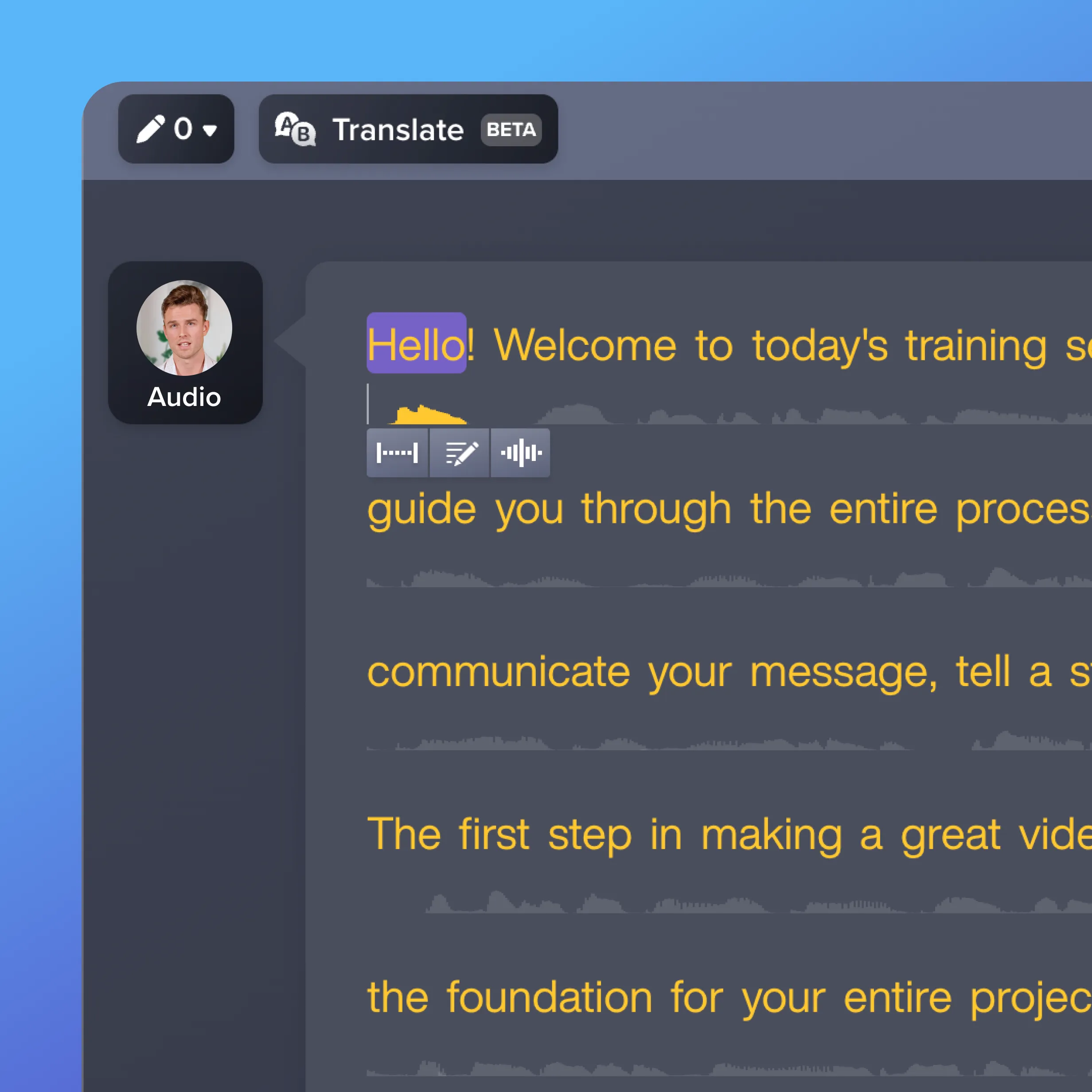
Edit wording, timing, and style
Text stays synced to audio, so you can edit the transcription as you would any document. Adjust timing and appearance without scrubbing frame by frame.
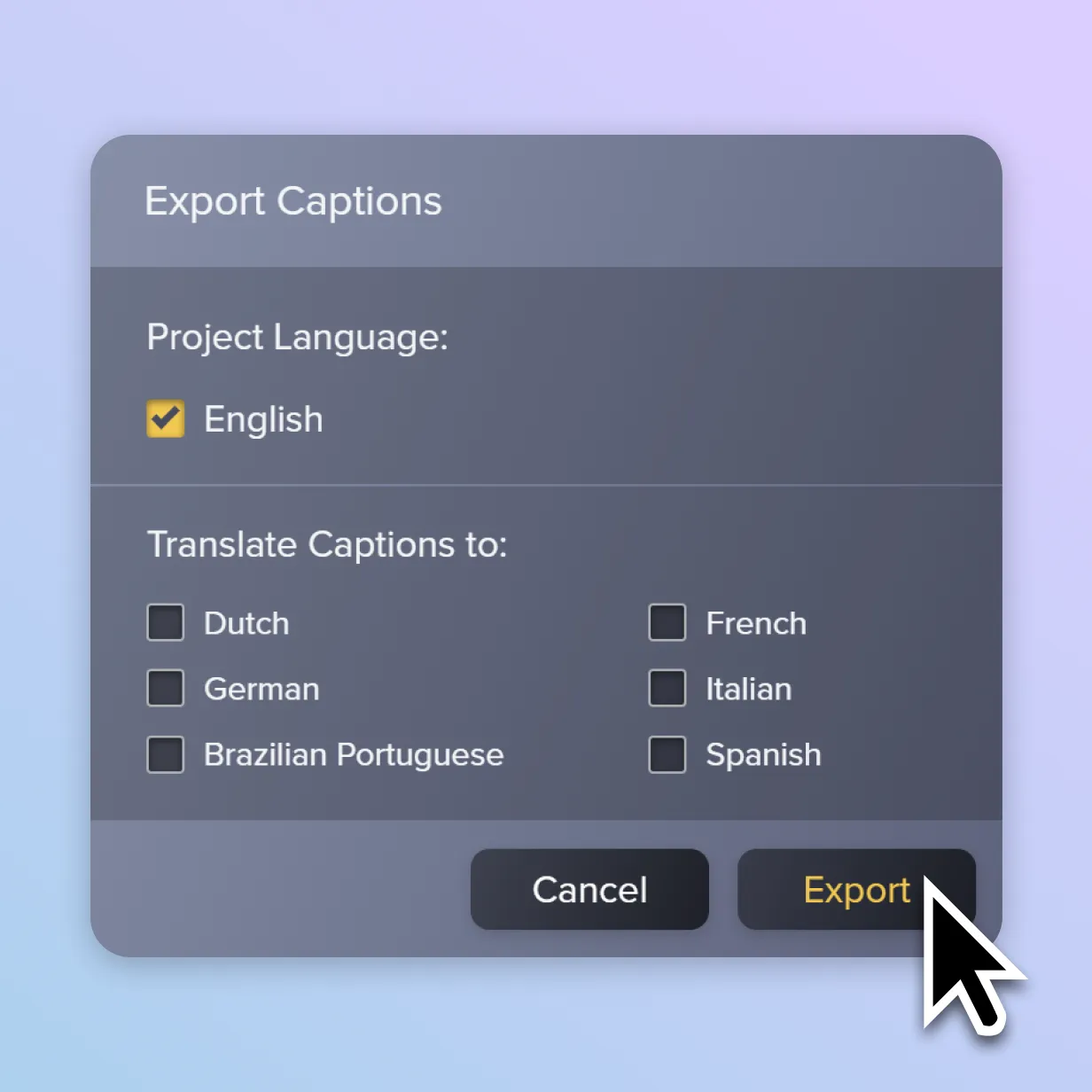
Export as SRT or burned-in
Export your captions as SRT or send the project to Camtasia Editor to burn them permanently into the video.
Get started with Camtasia Audiate
FAQ
Still can’t find what you need? Contact us and we’ll help you out.
Camtasia’s speech-to-text engine gives you a strong first draft, correctly synced to your audio, so you’re not starting from a blank page. You’ll still want to review it for names, acronyms, and technical terms specific to your content, but that’s a quick pass, not a full rewrite. The text-based editing in Camtasia Audiate lets you fix words by editing the transcript directly, and the change updates your video automatically.
Subtitles are text versions of spoken dialogue, often used for translation or viewers watching without sound. Closed captions go a step further and include speaker labels and important non-speech sounds, which matters for accessibility compliance. Camtasia supports both: use subtitles for reach and language coverage, and use closed captions when you need viewers to be able to turn text on or off for accessibility purposes.
This is a common problem when captioning tools are disconnected from your editor, but Camtasia keeps the transcript and video in the same project. If you trim, reorder, or replace a clip, the caption timing updates with it instead of drifting out of sync. As a best practice, do a final subtitle review after you finish editing, right before export, to catch anything that shifted.
Both options are available, and the right one depends on where you’re publishing. Export an SRT file if your platform (like YouTube or most LMS players) supports a caption toggle viewers can turn on or off. Burn subtitles directly into the video if you need them to display everywhere, including on players that don’t support caption files.
Camtasia gives you the tools to create captions that support WCAG 2.1 AA and Section 508 guidelines, including accurate timing, speaker identification, and editable text for meaningful non-speech audio. Meeting a specific legal standard also depends on how you review and finalize your captions before publishing, so we recommend checking your output against your organization’s accessibility policy. Camtasia’s accessibility documentation and VPAT are available if your compliance team needs more detail.
Check out our tutorial that will walk you through everything you need to know.